Access Fullstride Faster: How to Create a Mobile Shortcut
Learn how to add Fullstride to your home screen on iPhone and Android for one-tap access to your horse records.
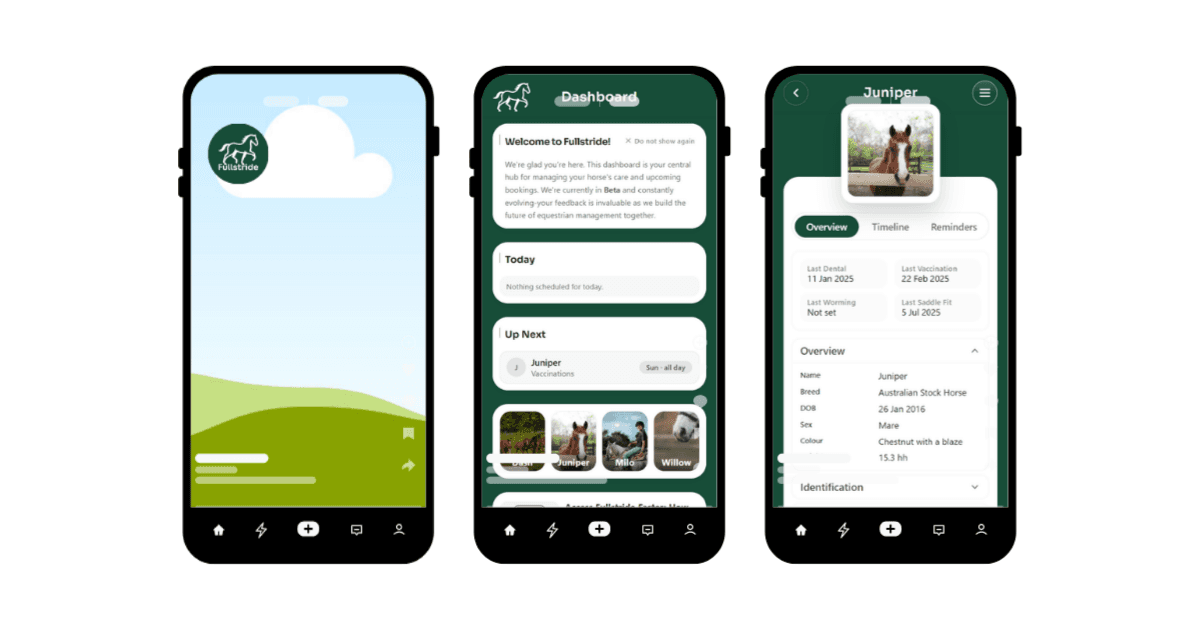
When you are at the stable or in the paddock, you want quick access to your horse’s records without having to type in a web address every time. Adding a Fullstride shortcut to your phone's home screen gives you one-tap access, making it feel and work just like a mobile app.
Here is how to set it up on iPhone and Android.
For iPhone (iOS) Users
Apple uses Safari to create home screen shortcuts. It only takes a few seconds:
- Open Safari and go to https://www.fullstride.app.
- Tap the Share icon (the square with an arrow pointing up) at the bottom of the screen.
- Scroll down the list of options and tap Add to Home Screen.
- You can keep the name "Fullstride" or change it if you like, then tap Add in the top right corner.
The Fullstride icon will now appear on your home screen. You can move it into a folder or place it right on your main screen for easy access.
For Android Users
On Android, the process is very similar using the Google Chrome browser:
- Open Chrome and go to https://www.fullstride.app.
- Tap the three dots (menu icon) in the top right corner.
- Select Add to Home screen.
- Tap Add when the confirmation box appears.
Android may also give you the option to manually place the icon or have it added automatically to the next available spot on your home screen.
Why use a shortcut?
- One-tap access: No more typing URLs or searching through bookmarks.
- App-like experience: When you open Fullstride from your home screen, it feels more like a native app.
- Ready when you are: Quickly check health records, update the timeline, or look up property details while you are actually with your horse.
Whether you are recording a last-minute worming dose or showing a practitioner your horse’s history, having Fullstride right there on your home screen saves time and keeps your records updated in the moment.