Back to blog
User Guide26 February 20261 min read
Sync Your Fullstride Calendar from My Profile
Add your Fullstride schedule to Apple Calendar, Outlook Classic, Google Calendar, or New Outlook in a few quick steps.
Fullstride TeamCalendar · Sync · My Profile
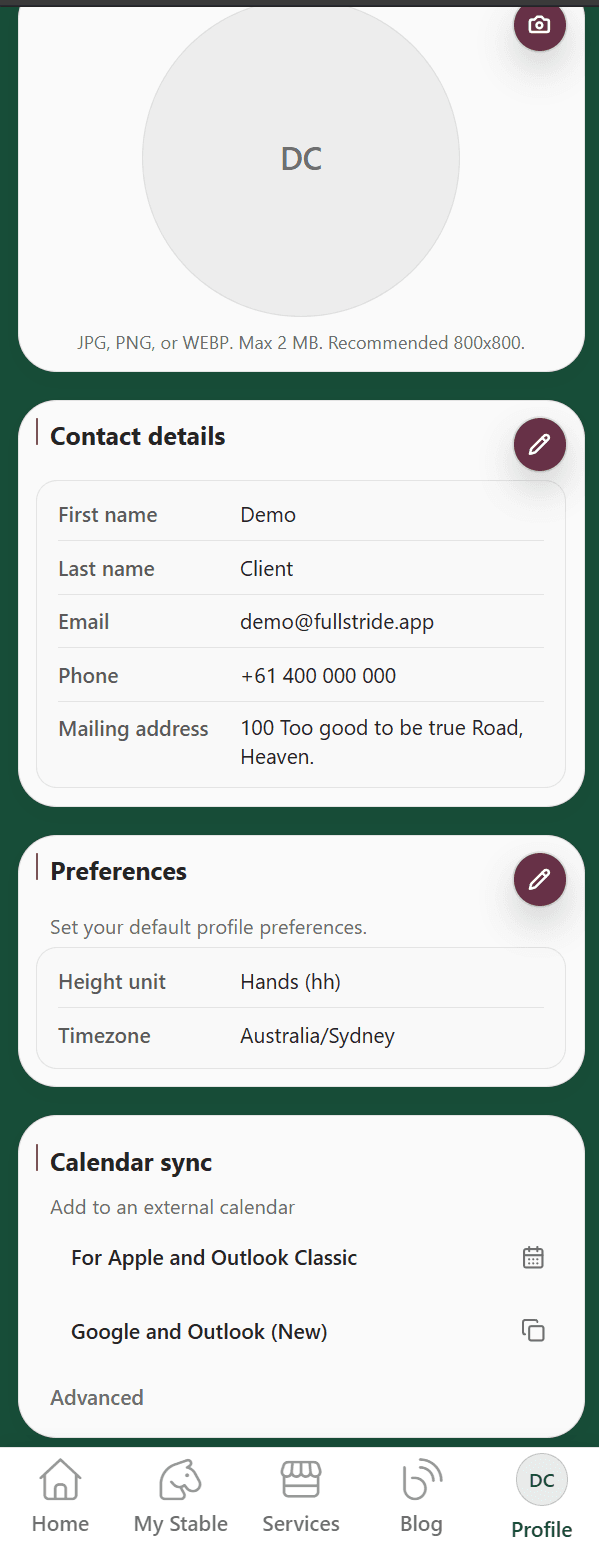
You can connect your Fullstride schedule to external calendar apps directly from My Profile.
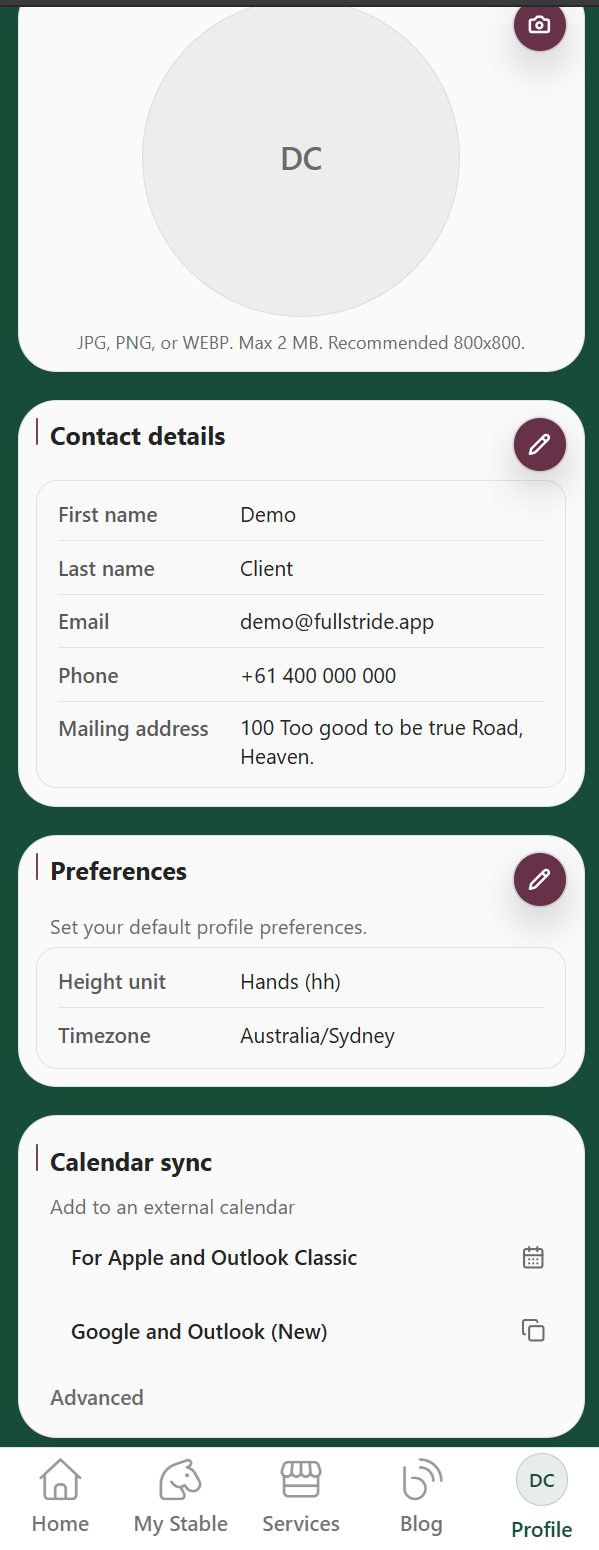
Step 1: Open My Profile
- Sign in to the client portal.
- Open
My profile. - Scroll to Calendar sync.
Step 2: Choose your sync method
Apple Calendar and Outlook Classic
- Select For Apple and Outlook Classic.
- Confirm the subscription when your calendar app opens.
Google Calendar and New Outlook
- Select Google and Outlook (New).
- Paste the copied link into your calendar app's URL subscription flow.
Step 3: Confirm in Calendar & Feed
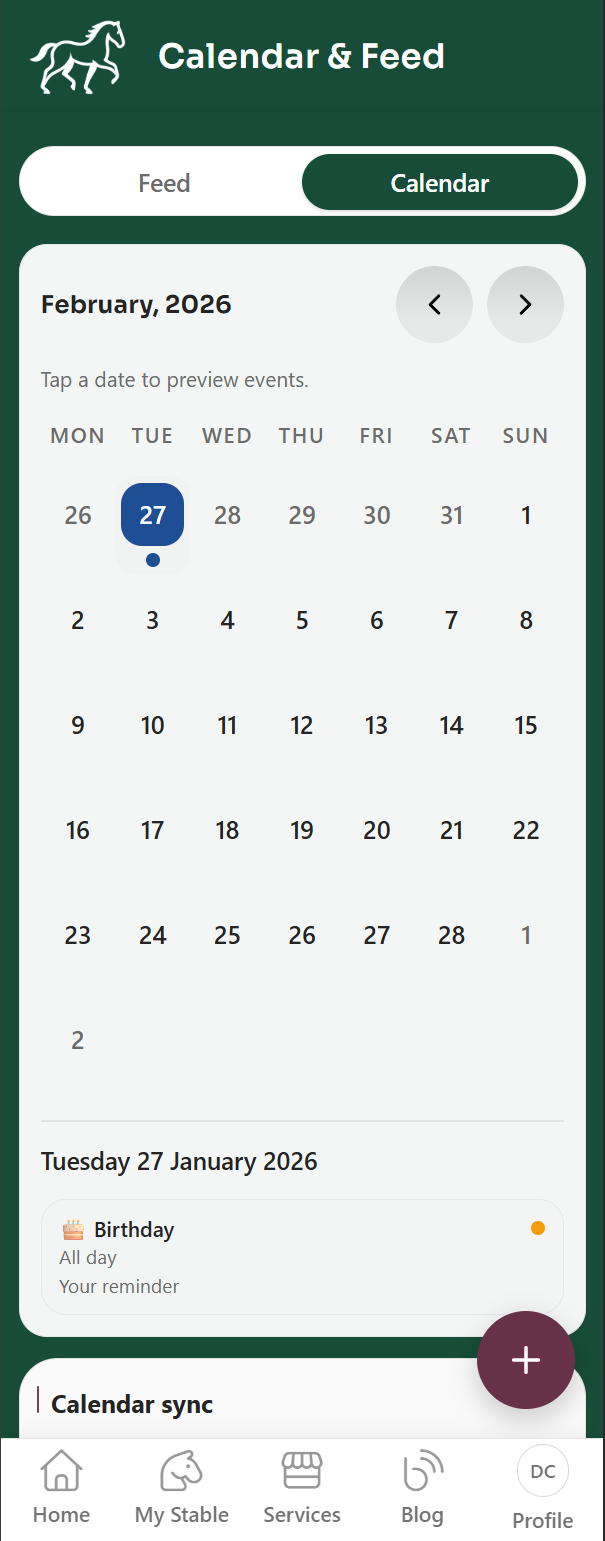
- Open Calendar & Feed.
- Select Calendar.
- Confirm your events appear in the month grid.
Resetting your link
If you think your link has been shared, expand Advanced in Calendar sync and select Reset link.
This invalidates the old URL, creates a new one, and requires re-subscribing in external calendar apps.